

This guide is for administrators or users of an already-provisioned Teeem AI tenant. If your organisation does not have an instance yet, contact sales.Documentation Index
Fetch the complete documentation index at: https://docs.teeem-ai.com/llms.txt
Use this file to discover all available pages before exploring further.
Open the invite email
Your organisation administrator sends you an invite. Click the link to set a password and sign in to the admin console.
The first person to sign up in an organisation automatically receives the enterprise_admin role.
Enable a channel
In the admin console, go to Settings → Channels and turn on the channels you want.
- Slack: install in your workspace, then paste the bot token (details)
- Web chat: ready to use immediately. Share
https://{yourcompany}-admin.teeem-ai.comwith employees
Send your first message
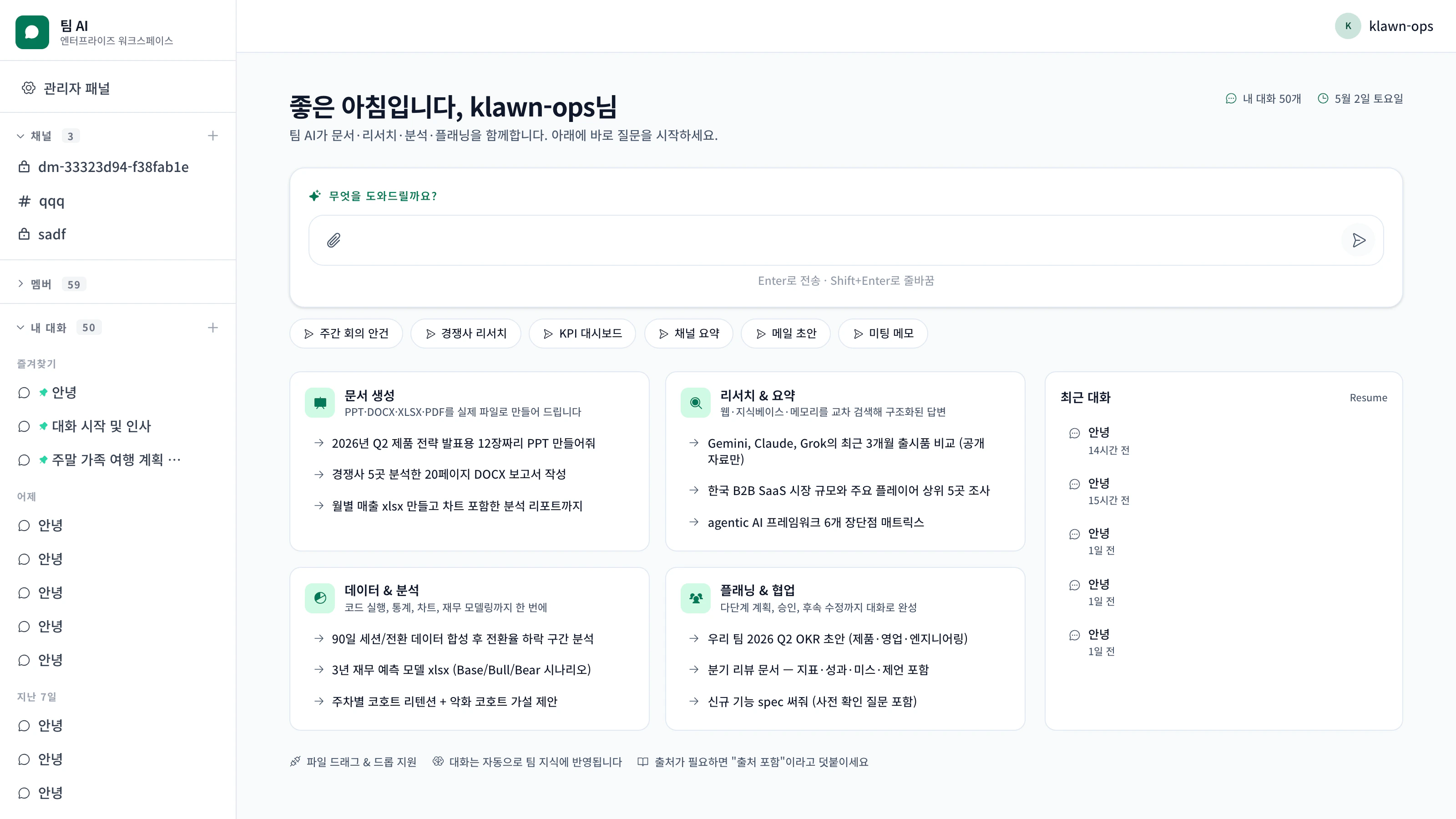
With a channel connected, start chatting.Mention the bot in a channel or DM it directly. If the answer cites sources, the citations appear in a separate context block beneath the response.
- Slack
- Web chat
Upload documents (optional)
Add team documents to the knowledge base so the agent can answer with citations.
- Drag and drop in the web chat input
- Slack attachments — upload to a channel where Teeem AI is present (toggle uploads per channel with
/upload-on) - Admin console — bulk upload from the Knowledge Base menu
Common gotchas
The Slack bot doesn't respond
The Slack bot doesn't respond
Make sure the bot is invited to the channel (
/invite @Teeem). Under the mention policy the bot only replies when explicitly mentioned. Change to open in Settings → Channels → Slack if you want it to respond to every message.File uploads fail
File uploads fail
Files larger than 8 MB are automatically processed asynchronously. The result lands in the same chat once processing completes (a thread reply on Slack, an SSE push in web chat).
Replies come back in English
Replies come back in English
Change the organisation language to
ko (or ja) under Settings → General. Korean, English, and Japanese are supported.